Additional Update: New Video Call Screen
The video call screen has been completely redesigned. You can now test your camera, microphone and speaker before joining a call, and during the call you can blur or replace your background, chat and share files, keep track of the remaining time and move the video into a small window. The call experience on mobile devices has also been improved.
1. Pre-Call Preview
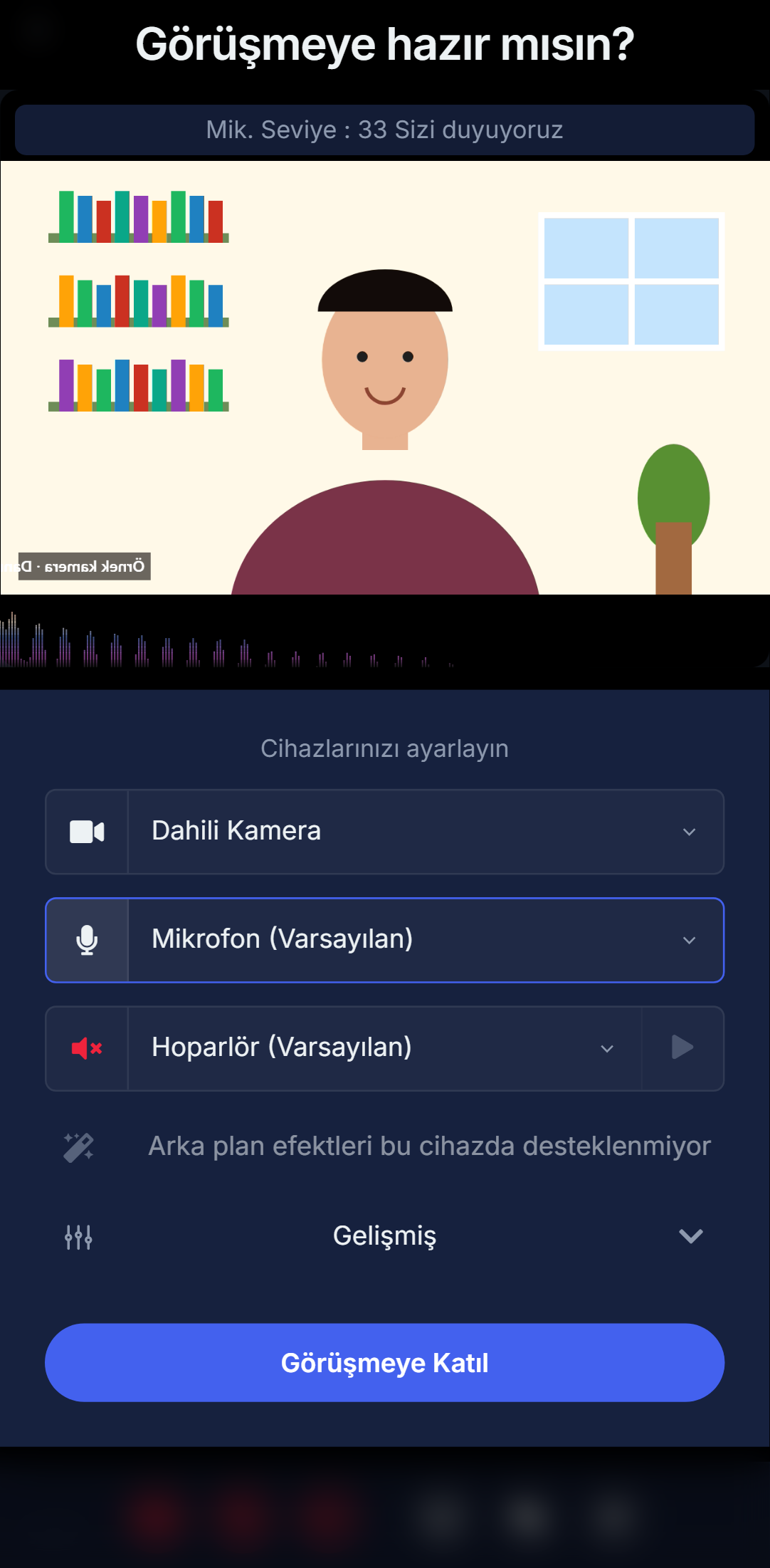
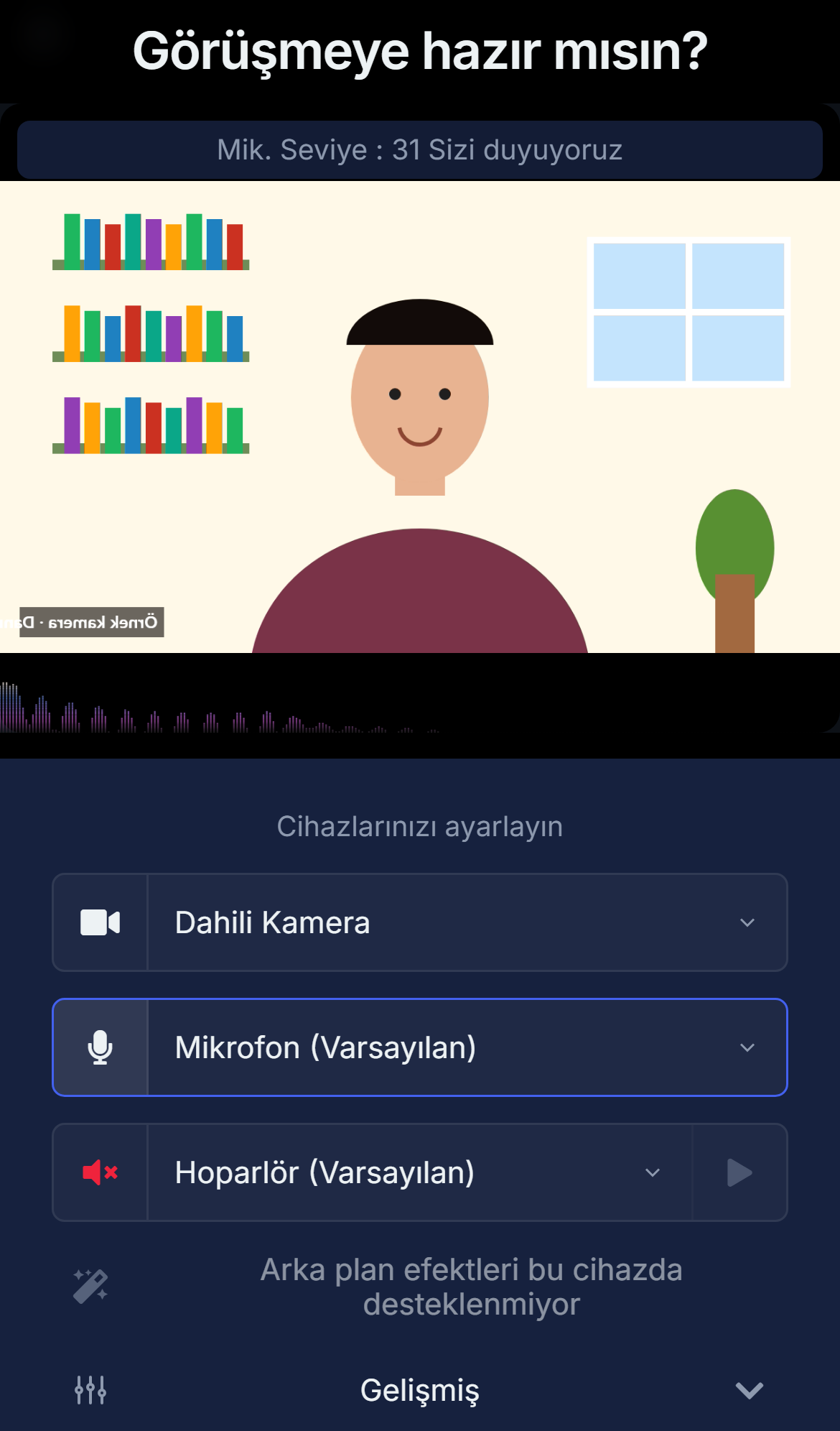
When you click the join button, a preview screen opens first. Here you can select and test your camera, microphone and speaker: the microphone level indicator and confirmation text show that your audio is coming through, and you can test your speaker with the ▶ button next to it. When you are ready, join the call from the same screen.
- Video Effects: Blur your background (with adjustable intensity and edge softness), choose one of the ready-made background images or upload your own.
- Advanced: Choose the video quality (Auto or 1080p–360p), mirror your own video and have the call switch automatically to a small window when you change tabs.
2. Waiting Screen
If you join before the other participant, the waiting screen shows the date, time and duration of the call. While the client is waiting, the expert’s calendar list shows a notice next to the appointment that the client is waiting in the call room, and the expert can join with a single click.
3. Call Screen
The other participant is shown full screen, with your own video in the bottom-right corner. Whether the phone is held vertically or horizontally, the video is never cropped or zoomed; if the aspect ratios differ, black bars appear at the edges. The remaining time is shown in the top left and the other participant’s name in the top right. Tap or click the screen to open the control bar, with buttons for camera, microphone, speaker, screen sharing, chat, settings and ending the call.
4. Messaging and File Sharing
Click the chat icon to open the message panel on the right. When the panel is closed, incoming messages appear as a brief notification over the video. Using the icon next to the message box, you can send up to 5 files at a time; the file appears as a link for the other participant and opens when clicked. For security reasons, executable files (exe, apk, etc.) cannot be sent.
5. In-Call Settings and the ⋮ Menu
The settings icon lets you change your camera, microphone, speaker, video effects and video quality without leaving the call, then return to it in one click. The ⋮ menu includes:
- Small Window Mode: Moves the call into a small window, so it stays on screen while you work in another tab or app.
- Full Screen: Expands the call to fill the entire screen.
- Troubleshooting & Info: Shows browser and system information, network tips, a connection latency graph and the status of your audio and video devices. This is the first place to check if you run into video or audio issues.
6. Time Tracking
A small timer in the top-left corner shows the time remaining until the appointment ends, without covering the video. When the time is up, the timer stops at 0:00; the call is not cut off automatically. Once the end time has passed, the expert sees a notice with the appointment details indicating that the end time has been exceeded and the call can be ended. This notice can be dismissed with ×.
7. Leaving the Call
Pressing the red button opens a confirmation window. After leaving, you return to the preview screen and can rejoin at any time within the scheduled call time. The other participant is also notified that you have left.
8. On Mobile Devices
The same preview screen opens on phones and tablets. Background effects are disabled on mobile devices, as they can cause overheating and lag; a notice that background effects are not supported on this device is shown in their place.
- The keyboard stays open after sending a message, so you don’t have to reopen it while chatting.
- Chat and video display correctly when you rotate the screen between portrait and landscape.
- The file icon opens the file picker directly, and images and PDFs sent via chat can also be opened on the phone.
Android:
Iphone:
Good to Know
- Background effects are available on desktop only.
- Small Window Mode is available on desktop and Android; it is not shown on iPhone and iPad.
- The browser asks for camera and microphone permissions separately, so participants without a camera can still join with audio only.
- If you have video or audio issues, check ⋮ › Troubleshooting & Info first, then make sure the correct device is selected in the settings.
Camera images and names in the screenshots are examples.